Braces Filter — Create Your Version
Braces Filter — Create Your Version: create an AI image from your photo. AI image: 5 credits. Open the AI generator to start, or try the free caption editor below.
Braces Filter AI generator
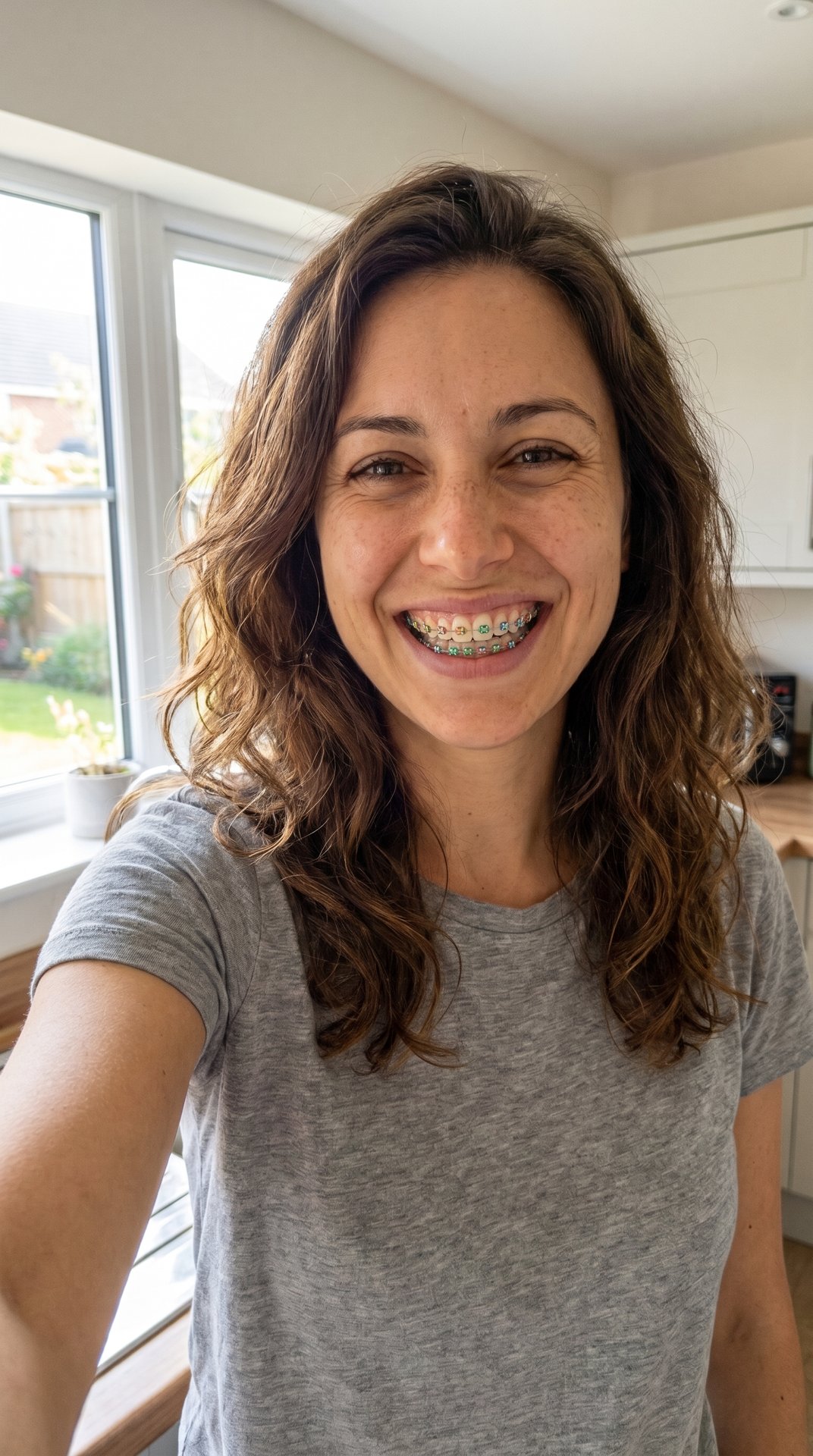
A picture of you smiling with metal braces: a silver bracket on each tooth, a thin wire and a small elastic band on every bracket
AI image: 5 credits
AI examples. Open the generator to add your own photo.
Caption it
Free, no sign-in. Made on your phone; nothing is uploaded.
This picture is an AI example, made with an AI-made person.
How to use the Braces Filter — Create Your Version
Start with the moment you want the joke to capture. Try one of the available pictures, or choose a JPG, PNG or WebP from your device. Put the setup in the top line and the payoff in the bottom line. You can leave either line empty. Keep the text short enough to read on a phone; the preview updates while you type, so you can check that the words do not cover the part that makes the joke work.
What can this Braces Filter — Create Your Version create?
The free Braces Filter — Create Your Version exports a JPEG with your picture and captions. The text uses white lettering with a black outline, and a small site credit appears in the corner. It keeps the picture's proportions and reduces wide pictures to at most 1080 pixels across. It does not animate a still, extract a video frame or add a soundtrack. The separate AI generator uses the tested format described below. A picture of you smiling with metal braces: a silver bracket on each tooth, a thin wire and a small elastic band on every bracket Bands in the color you type, or rainbow if you leave it as it is Your face, hair, clothes and background as in your photo; if your mouth is closed, you're given a smile so the braces show Check the examples and output details before spending credits.
Give your Braces Filter version a clear punchline
Same smile, plus a mouthful of metal and rainbow bands. Use that idea as the starting point for a situation your friends recognise. A specific detail from your day usually gives the caption more meaning than a generic reaction. Read the two lines together before downloading: the second should finish or reverse the first. Try one version with less text and compare it in the preview. You can change the wording repeatedly in the Braces Filter — Create Your Version without using credits.
Save and share from the Braces Filter — Create Your Version
Press Save image when the preview looks right. On a supported phone, Share opens the device's share sheet with the image attached; otherwise it downloads the file. Choose the destination yourself. The Braces Filter — Create Your Version does not publish to your account or add your picture to a public feed. If you want music or a timed video edit, add those in the app where you post. The caption editor keeps your selected picture and typed text in this browser tab only; save the finished image before leaving or reloading.
How do I make Braces Filter?
- Photos
- 1 photo of you
- Output
- Image: vertical 9:16, about a minute, 5 credits
- You choose
- A caption (optional)
- Fixed
- Metal braces with silver brackets and wire; only the band color changes
You get
- A picture of you smiling with metal braces: a silver bracket on each tooth, a thin wire and a small elastic band on every bracket
- Bands in the color you type, or rainbow if you leave it as it is
- Your face, hair, clothes and background as in your photo; if your mouth is closed, you're given a smile so the braces show
Not included
- A live camera filter or TikTok's or Snapchat's effect
- A video: this one is a picture
- A preview of real treatment: the braces are drawn on your teeth as they are, and nothing moves
Step by step
- Tap "Put me in it" at the bottom of this page.
- Upload your photo, or both photos. A clear, front-facing face works best.
- Type a caption, or leave it empty.
- The price is on the button, and a new account that signs in with Google gets 10 credits free.
- Wait for it to finish. It is saved under Me, where you can download or share it. A render that fails is refunded.
Posting your version
- Use a bright, front-facing photo where your teeth show; the braces filter has more to work with.
- Pick a band color that says something: rainbow for fun, one color to test a real choice.
- If it's a prank, tell people it's a filter before anyone books a dentist.
Braces Filter — Create Your Version: FAQ
Is the Braces Filter — Create Your Version free?
The caption editor is free, including JPEG downloads and sharing, with no sign-in. AI image: 5 credits. AI generation is a separate option and uses credits; its button shows the cost before you submit.
Can I use my own picture in the Braces Filter — Create Your Version?
Yes. Choose a JPG, PNG or WebP up to 15 MB. Use a picture you own or have permission to edit. It stays in your browser for caption editing; it is not uploaded to our servers.
Does this Braces Filter generator make videos?
The free editor makes a captioned JPEG, not a video. It does not reproduce the original clip, its movements or its audio.
How do I write captions in the Braces Filter — Create Your Version?
Type into the top and bottom text fields. Each field accepts up to 90 characters; either may be left blank. The preview fits the text automatically. Short captions are easier to read on a phone and leave more of the picture visible.
Will my meme be published automatically?
No. Save downloads your image and Share opens your device options. You decide where to post it. Pictures and captions used in the free editor are not saved to your account, so download your result before closing the page.
Where can I read what Braces Filter means?
Use the linked meme explainer for the meaning, original post, dated history and sources. This maker page focuses on creating your own version, with the available tools and their output described above.